
How to Add a New Screen
FlutKit Dashboard UI Kits includes a ready-to-clone starter page/screen so you can quickly build new pages without starting from scratch. The recommended workflow is by duplicating the starter_page_screen.dart file.
1. Duplicate the starter page
Locate and duplicate starter_page_screen.dart.
/demo/page/starter_page_screen.dartRename it to something meaningful, for example:
my_new_screen.dart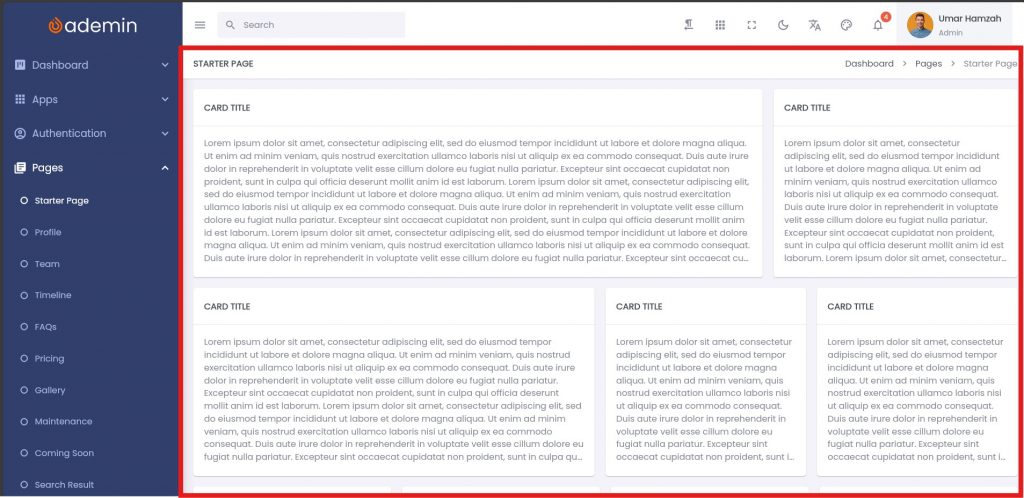
2. Rename the screen widget
Open the file and rename the class:
class StarterPageScreen extends StatefulWidget {
  const StarterPageScreen({super.key});

  @override
  State<StarterPageScreen> createState() => _StarterPageScreenState();
}

class _StarterPageScreenState extends State<StarterPageScreen> {to become:
class MyNewScreen extends StatefulWidget {
  const MyNewScreen({super.key});

  @override
  State<MyNewScreen> createState() => _MyNewScreenState();
}

class _MyNewScreenState extends State<MyNewScreen> {Tips: In VSCode, you can use Ctrl + F2 to block and rename the class at the same time.
Update the title:
final pageTitle = 'My New Screen';3. Adjust breadcrumbs
Find this section:
//breadcrumbs
Row(
  mainAxisSize: MainAxisSize.min,
  children: [
    Breadcrumbs(
      items: [
        BreadcrumbItem(
          label: lang.dashboard,
          uri: RouteUri.home,
        ),
        BreadcrumbItem(
          label: lang.pages(2),
          uri: '',
        ),
        BreadcrumbItem(
          label: lang.starterPage,
          uri: RouteUri.starterpage,
        )
      ],
    ),
  ],
),Modify the label and route of BreadcrumbItem.
4. Add your own content
Inside the content section:
//content
Padding(
  padding: const EdgeInsets.all(kDefaultPadding),
  child: Column(
    children: [
      // your content here
    ],
  ),
),You can insert any widgets such as forms, tables, charts, or cards here.
5. Manage Navigation to Your New Screen
Add route in app_router.dart
Open:
lib/app_router.dartAdd the string inside your RouteUri class:
static String myNewScreen = '/my-new-screen';This RouteUri will appear as the url in the web browser.
example:
example.com/#/my-new-screenThen add a new GoRoute:
GoRoute(
  path: RouteUri.myNewScreen,
  builder: (context, state) => const MyNewScreen(),
),6. Navigate to the new screen
To navigate to your new screen, use:
GoRouter.of(context).go(RouteUri.myNewScreen);Example of use in a button:
FlatButton(
  kText: 'Go to New Screen',
  kTextColor: Colors.white,
  bgColor: kSuccessColor,
  isFullWidth: true,
  onPressed: () {
   GoRouter.of(context).go(RouteUri.myNewScreen);
  },
),Example of use as sidebar menu item:
SidebarMenuConfig(
  uri: RouteUri.myNewScreen, // navigate to myNewScreen
  title: (context) => Lang.of(context).newScreen,
  icon: Icons.chat_outlined,,
  iconSize: 20,
);