
How to Add a Sidebar Footer
Summary: Learn how to add sidebar footer in Flutter Dashboard.
When building a Flutter Dashboard, the sidebar plays an important role in navigation and usability. A well-structured sidebar not only helps users move between pages quickly but also provides space for additional actions such as upgrade buttons, help links, or version information.
In the FlutKit Flutter Dashboard, developers can easily extend the sidebar by adding custom widgets to the Sidebar Footer. This section appears at the bottom of the dashboard sidebar and is commonly used for promotional buttons, quick links, or contextual tools that should remain visible across the dashboard interface.
Using the sidebar footer configuration, you can inject custom Flutter widgets directly into the sidebar layout without modifying the core sidebar component.
FlutKit Flutter Dashboard provides a simple configuration to inject custom widgets into the sidebar footer.
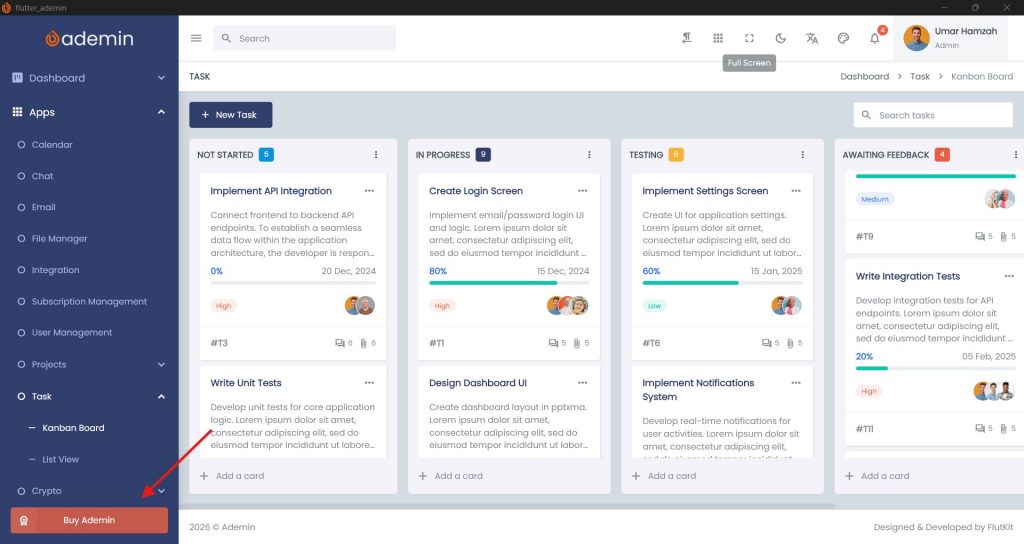
Sidebar Footer Configuration
To add a widget to the sidebar footer, modify the sidebar footer configuration. You can finde this configuration file in lib\configs\sidebar_footer_config.dart
Example implementation:
// sidebar footer config

class SidebarFooter {
  static List<Widget> sidebarFooter(BuildContext context) {
    return [
      // buy ademin button
      BuyAdeminButton(),
    ];
  }
}This method returns a list of widgets that will appear at the bottom of the sidebar.
Where to Place Sidebar Footer Widgets
Custom sidebar footer widgets should be placed inside the following directory:
lib\widgets\sidebarThis file contains reusable sidebar components used by the dashboard.
Example structure:
lib
 └── widgets
     └── sidebar
└── buy_button.dartYou can define custom widgets here to keep your project organized.
Adding Multiple Footer Widgets
Because the configuration uses a List, you can add multiple widgets.
Example:
class SidebarFooter {
  static List<Widget> sidebarFooter(BuildContext context) {
    return [
      const BuyAdeminButton(),
      const SizedBox(height: 16),
      const SidebarVersionInfo(),
    ];
  }
}Best Practices
When creating sidebar footer widgets, consider the following recommendations:
1. Keep the Content Minimal
The sidebar footer should remain lightweight and should not contain complex UI components.
2. Use Consistent Spacing
Apply padding or spacing between widgets to maintain visual balance.
3. Use Reusable Widgets
Define widgets in sidebar_widget.dart so they can be reused across different templates or pages.
4. Avoid Large Widgets
The sidebar footer is intended for small elements such as buttons, badges, or labels.
Summary
The Sidebar Footer in Ademin allows developers to easily insert custom widgets at the bottom of the sidebar. By configuring the SidebarFooter.sidebarFooter() method and placing widgets in lib/widgets/advanced/sidebar_widget.dart, you can extend the sidebar with additional functionality while keeping the codebase modular and maintainable.
