
How to Customize the Top Navigation Bar
The Top Navigation Bar is fully configurable. Almost every icon or button you see in the top section comes from configuration files instead of being hard-coded.
This gives you flexibility to:
- add your own button or action
- remove built-in widgets
- reorder items
- conditionally show items based on device size (desktop, web, mobile)
- integrate your own services (notifications, user dropdown, language, themes, etc.)
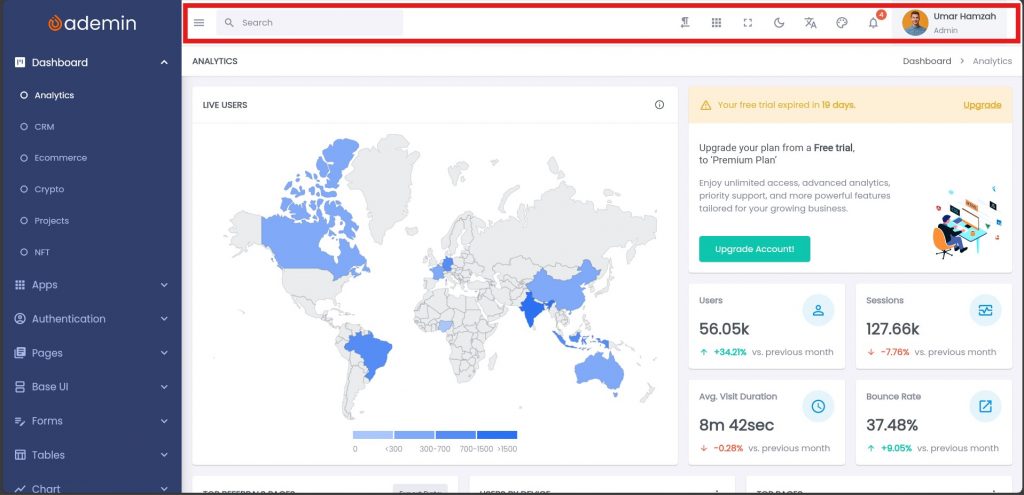
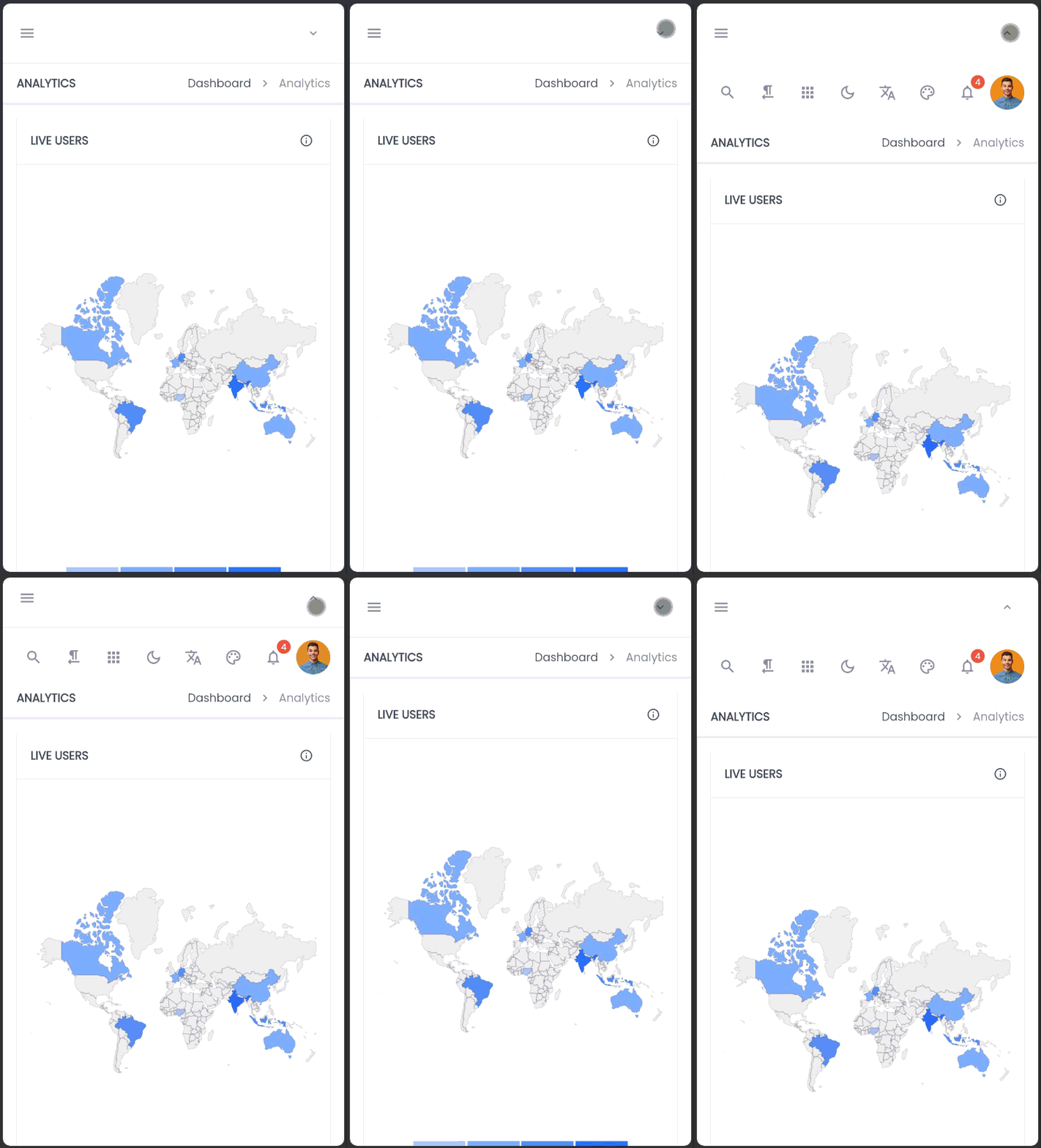
Files involved
| File | Responsibility |
|---|---|
/lib/configs/top_nav_bar_config.dart | Controls which widgets appear (Desktop & Mobile) |
/lib/views/widgets/advanced_ui/top_nav_bar_widget.dart | Base widget for each top menu item. Contains data models, mockup datas, and UI view widgets. Modify or extend |
Overview of Configuration
Default configuration of Top Navigation Bar located inside:
Dart
/lib/configs/top_nav_bar_config.dartDart
class TopNavBarConfig {
  // List of widgets displayed in the desktop top navigation bar
  static List<Widget> desktopActions(BuildContext context) {
    final lang = Lang.of(context);

    return [
      // Search bar with fixed width
      SizedBox(
        width: 280,
        child: SoftSearchBar(
          hintText: lang.search,
        ),
      ),
      Spacer(), // Pushes utility widgets to the right.
      RTLSwitch(), // Toggles UI direction (Right-to-Left).
      AppSelectorButton(), // Button to switch applications/modules.
      FullScreenButton(), // Toggles application fullscreen mode.
      ToggleThemeButton(), // Switches between light and dark themes.
      ChangeLanguageButton(), // Changes the application's displayed language.
      ThemeSelectorButton(), // Selects a specific color theme/palette.
      NotificationButton(), // Displays notifications count and list.
      ProfileButton(), // Accesses user profile, settings, and logout.
    ];
  }

  // List of widgets displayed in the mobile top navigation bar
  static List<Widget> mobileActions(BuildContext context) {
    return [
      SmallSearchBarButton(), // Button that opens/expands the search interface.
      RTLSwitch(), // Toggles UI direction (Right-to-Left).
      AppSelectorButton(), // Button to switch applications/modules.
      ToggleThemeButton(), // Switches between light and dark themes.
      ChangeLanguageButton(), // Changes the application's displayed language.
      ThemeSelectorButton(), // Selects a specific color theme/palette.
      NotificationButton(), // Displays notifications count and list.
      ProfileButton(), // Accesses user profile, settings, and logout.
    ];
  }
}
You control exactly what appears, by editting that list anytime. For example, if you don’t want the theme selector to be in the top navigation bar, then comment/remove ThemeSelectorButton() from the list, both desktopActions and mobileActions.
Modifying Individual Widgets
All action items are real widgets located mainly inside:
Dart
lib/views/widgets/advanced_ui/top_nav_bar_widget.dartThis file is intentionally extendable.
So if want a different icon or behavior:
- duplicate a widget from
top_nav_bar_widget.dart - copy and paste a widget to a new file eg:
custom_top_nav_bar_widget.dart - edit the widget.
- add to TopNavBarConfig
Example:
Dart
class MyCustomButton extends StatelessWidget {
  @override
  Widget build(BuildContext context) {
    return IconButton(
      icon: Icon(Icons.settings),
      onPressed: () {},
    );
  }
}In /lib/configs/top_nav_bar_config.dart
Dart
class TopNavBarConfig {
  static List<Widget> desktopActions(BuildContext context) {
    return [
      MyCustomButton(), // add your custom button
    ];
  }

  static List<Widget> mobileActions(BuildContext context) {
    return [
      MyCustomButton(), // add your custom button
    ];
  }
}
